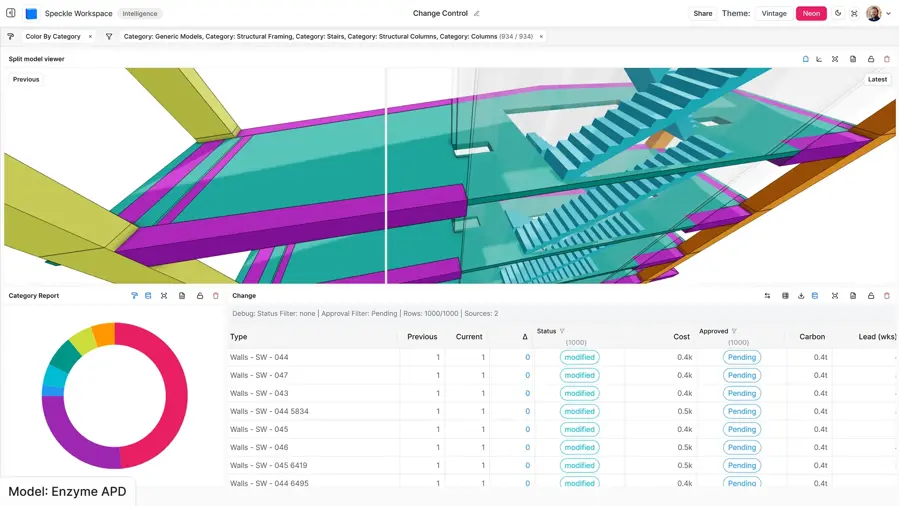
Compare model versions
Use Speckle Intelligence to see what was added, removed or modified between two synced versions, down to the element, right in your browser.
Connect your Revit, IFC or Navisworks files in SharePoint once. Published model changes become Speckle versions you can compare, report on and share.
1 of 3 files selected
 SpeckleRiverside project
Connected models from SharePoint: 1
Files get overwritten and re-uploaded. When a client asks what changed since the last issue, someone opens two models side by side and starts hunting.
Ask Speckle Intelligence to explain the changes.
What changed since the last issue?
Compare the model data in Speckle Intelligence.
How it works
Your team saves models to SharePoint. Speckle follows their published content.
Choose the model files you care about from your SharePoint libraries, once.
Your team saves files to SharePoint the way it does today.
Speckle captures published content changes automatically, ready to compare and share.
Your Microsoft admin approves Speckle once for your organization. This grants the background app read access across its SharePoint Online sites. Only the files you select are synced. Drafts are skipped until published; renames and library column edits alone do not create model versions.
Use Speckle Intelligence to see what was added, removed or modified between two synced versions, down to the element, right in your browser.
In Speckle Intelligence Chat, turn a version comparison into a shareable Report for coordination meetings or client issues.
Each Speckle version records its time and publisher, with the source SharePoint version number so you can trace the model content used for a review.
SharePoint Speckle History starts when you connect.
Clients and consultants open the latest synced model from a shared link. No SharePoint licence or source-file transfer needed.
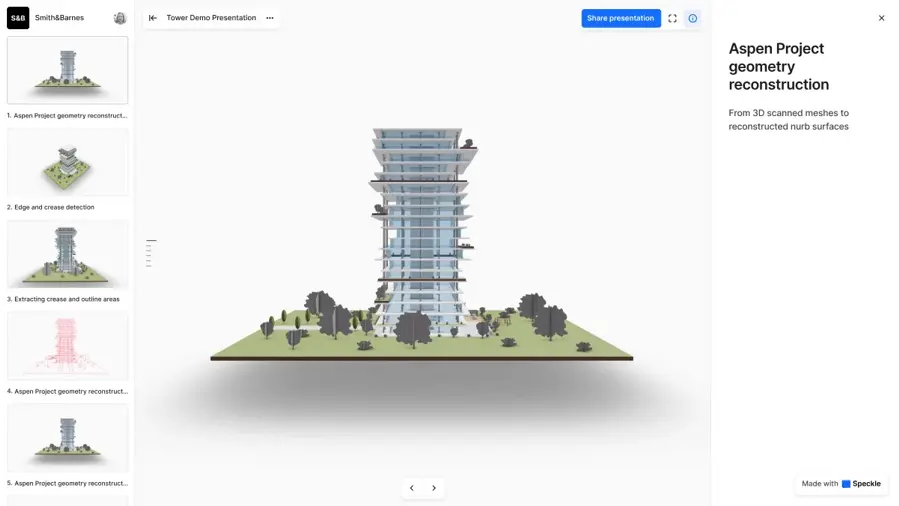
Architecture, structure and coordination, together in SharePoint. Keep publishing to the same document library. Speckle connects the model files you choose to your wider project workflow.
 Revit.rvt
 IFC.ifc
 AutoCAD.dwg
 Navisworks.nwd · .nwc
 SketchUp.skp
 Rhino.3dm
 Vectorworks.vwx
 OpenRoads Designer.dgn
published to
SharePointDocuments / Project models
kept current in

ready for
Choose individual files to sync. SharePoint remains the source for your documents.
Keep publishing to your team's document library. Connect supported model files to Speckle without changing where your team stores them.
Architecture, structure and MEP models saved to your document library.
.rvt
Open-format models shared across disciplines and authoring tools.
.ifc
DWG files alongside the rest of your project documents.
.dwg
Coordination models ready to review with the project team.
.nwd · .nwc
Concept and design models, connected from the same library.
.skp
Design geometry available to your wider project team in Speckle.
.3dm
Architecture and landscape models published to your document library.
.vwx
Road, rail and site models from OpenRoads, read as DGN.
.dgn
Choose what to bring into Speckle. Other documents in your library stay out of the sync.
SharePoint + Speckle