From Rhino massing to measurable insight in Speckle Intelligence dashboards
This tutorial walks you through a complete, end-to-end workflow for turning early-stage massing models into clear, data-driven insights.
Starting from a Rhino massing model, you’ll learn how to structure geometry in Grasshopper, enrich it with meaningful performance data, and publish multiple design options to Speckle.
The result is an interactive Intelligence dashboard that helps you compare alternatives, validate program distribution, and support better design decisions early, when they matter most.
Register for free and create your first Speckle Intelligence dashboard.
Client's brief:
The client envisions a mixed-use development integrating residential, commercial, service, and office uses within a total buildable area of 55,000 sqm.
The project aims to create a balanced and efficient urban environment, with offices and residential spaces each comprising 33% of the total area, commercial uses accounting for 22%, and service functions making up 12%, ensuring a well-integrated and functional development.
Requirments:
- A Speckle account. Become a user for free to get access to Speckel Intelligence right away!
- Rhino 8 and Grasshopper software installed.
- Speckle connectors for Rhino and Grasshopper installed. You can do that directly from the Speckle app here.
Safely download files to try this workflow out.
Step 1: Model and organize your massing in Rhino
- Create your massing model in Rhino.
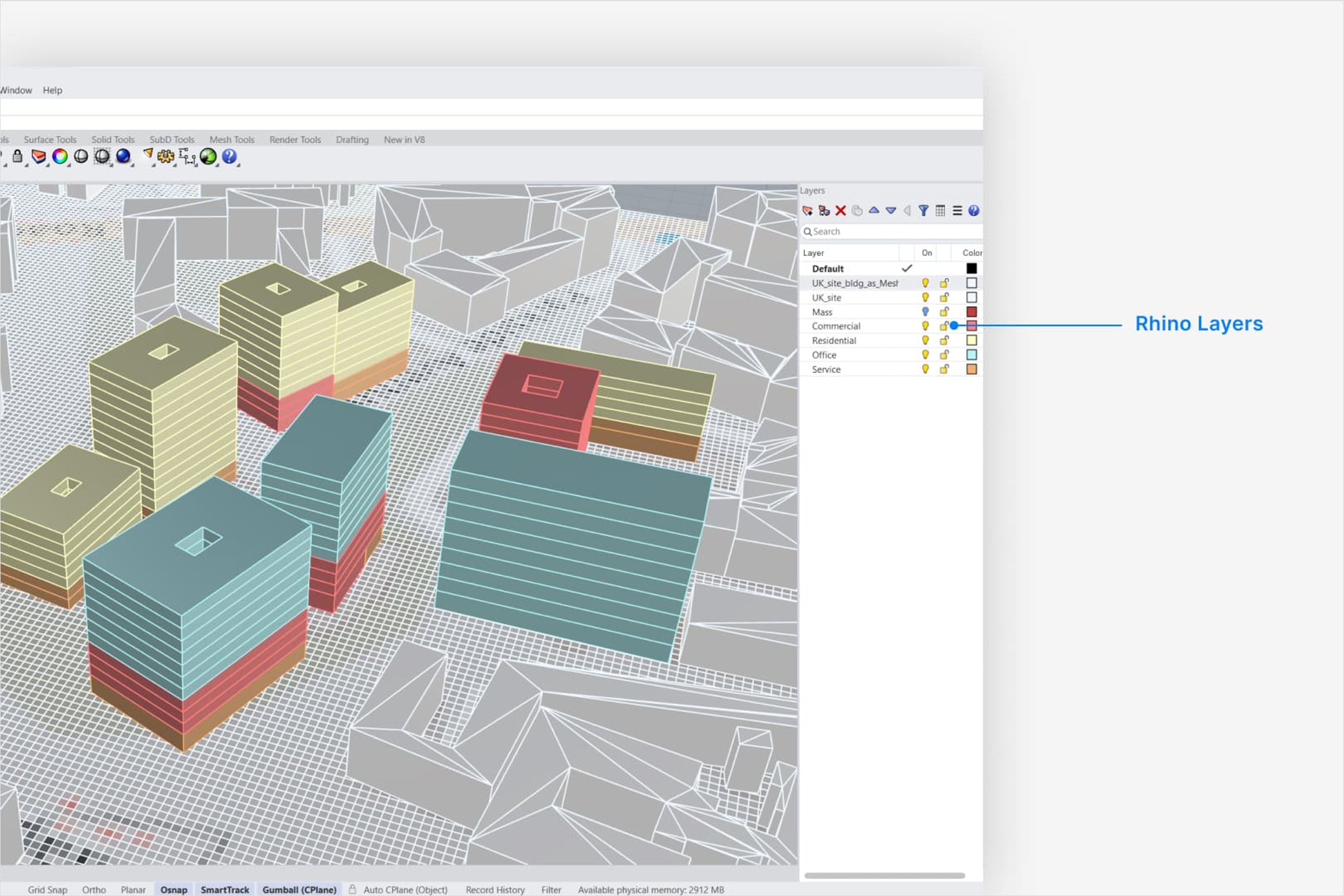
- Organize your geometry into properly structured layers, assigning clear names and colors for easy identification.
In this example, the model uses the following layers:
- Mass – contains the overall volumetric geometry of each building
- Commercial – represents the commercial program
- Residential – represents the residential program
- Office – represents the office/workspace program
- Service – represents the service program
Step 2: Query and prepare Rhino model objects in Grasshopper
Extract layer data and geometrical data in GH using the native Rhino Nodes.
- This step organizes and structures the Rhino objects inside Grasshopper.
- By querying objects by layer, you can later add custom properties and send them to Speckle.
Sign up for workflows, news, and tutorials to boost your team’s productivity with Speckle.
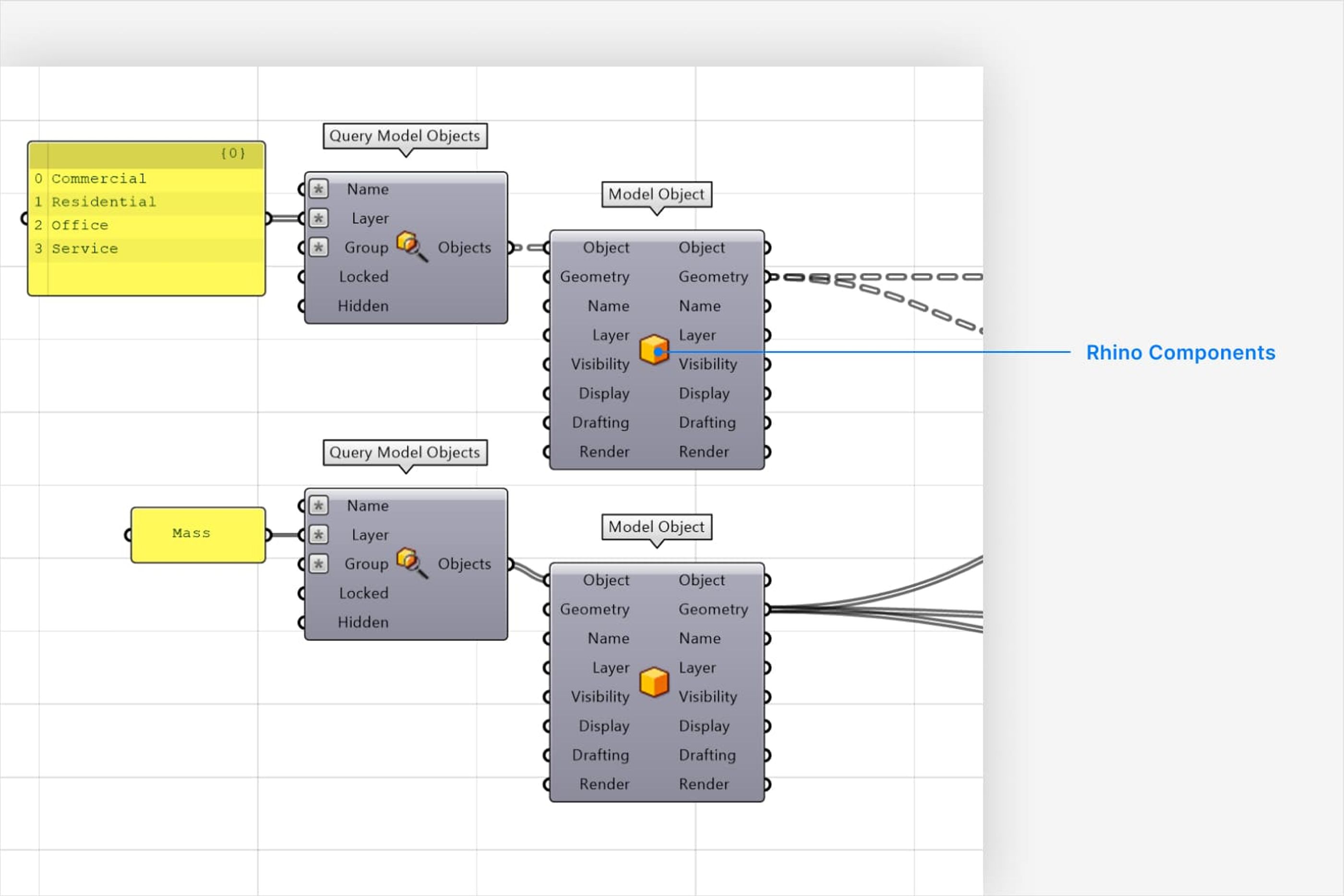
Query model objects (Gray components)
- The “Query Model Objects” components pull Rhino objects from the specified layers.
- Inputs include:
Name– the layer name from RhinoLayer– the layer filter
Model object components
- The output of “Query Model Objects” is connected to “Model Object” components.
- Extract key object properties such as:
Geometry– the actual 3D geometry
- Program use from layer name
- Area and other numerical data (ie height, perimeter) comes from geometrical extracting data
Step 3: Use the geometry to create additional calculations and KPIs
- Program use from layer name
- Building name
- Building height
- Building footprint
- Program area use
- Floor name/number
- Floor height
- Gross Building Area
- Perimeter
- Wall-to-floor ratio
- Global KPIs (Office%, Commercial%, Service%, Residential%)
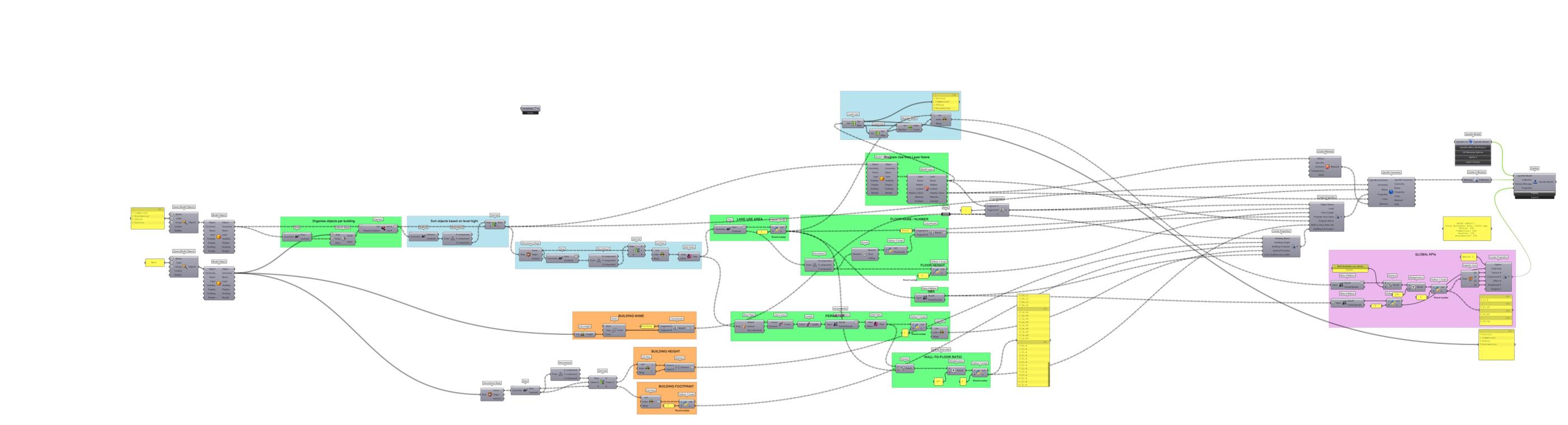
Explore this script in high resolution here.
Step 4: Create Speckle Objects using the Speckle Grasshopper components
Use the "Create Properties" together with the "Speckle Geometry" component to create your custom properties for each Object.
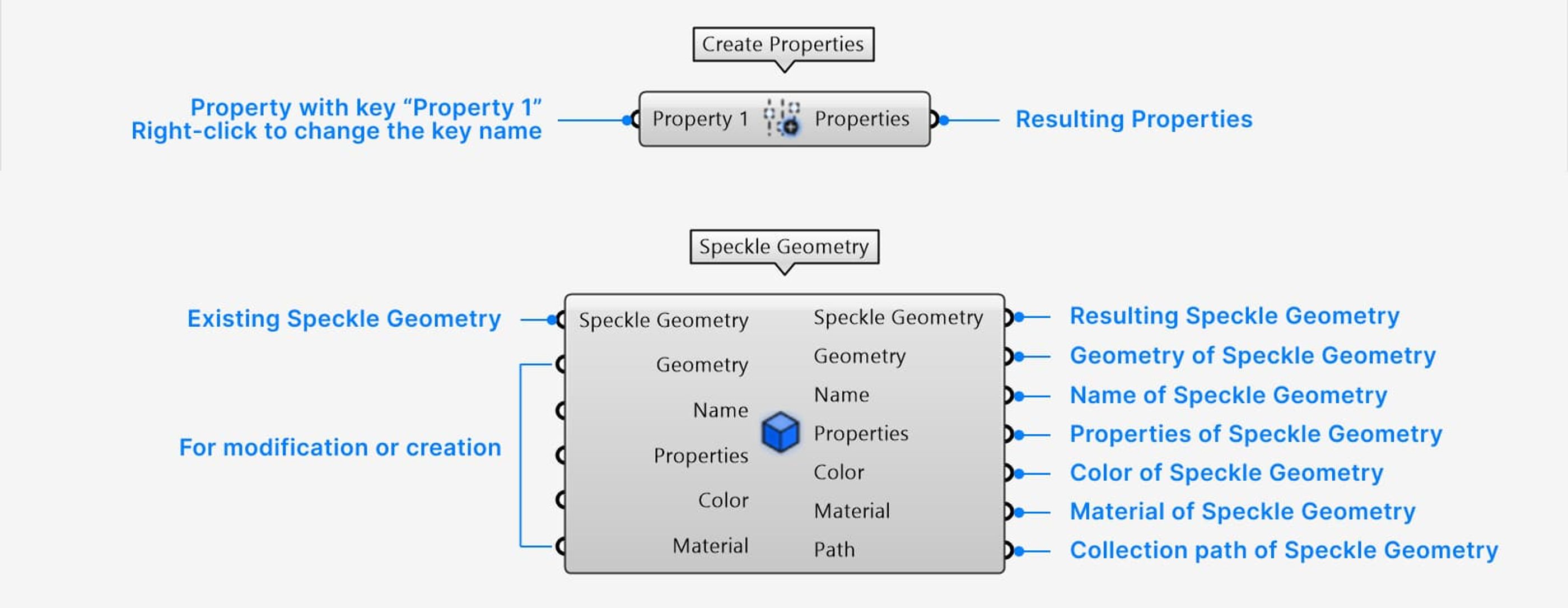
Click here to learn more about the Grasshopper Speckle nodes.
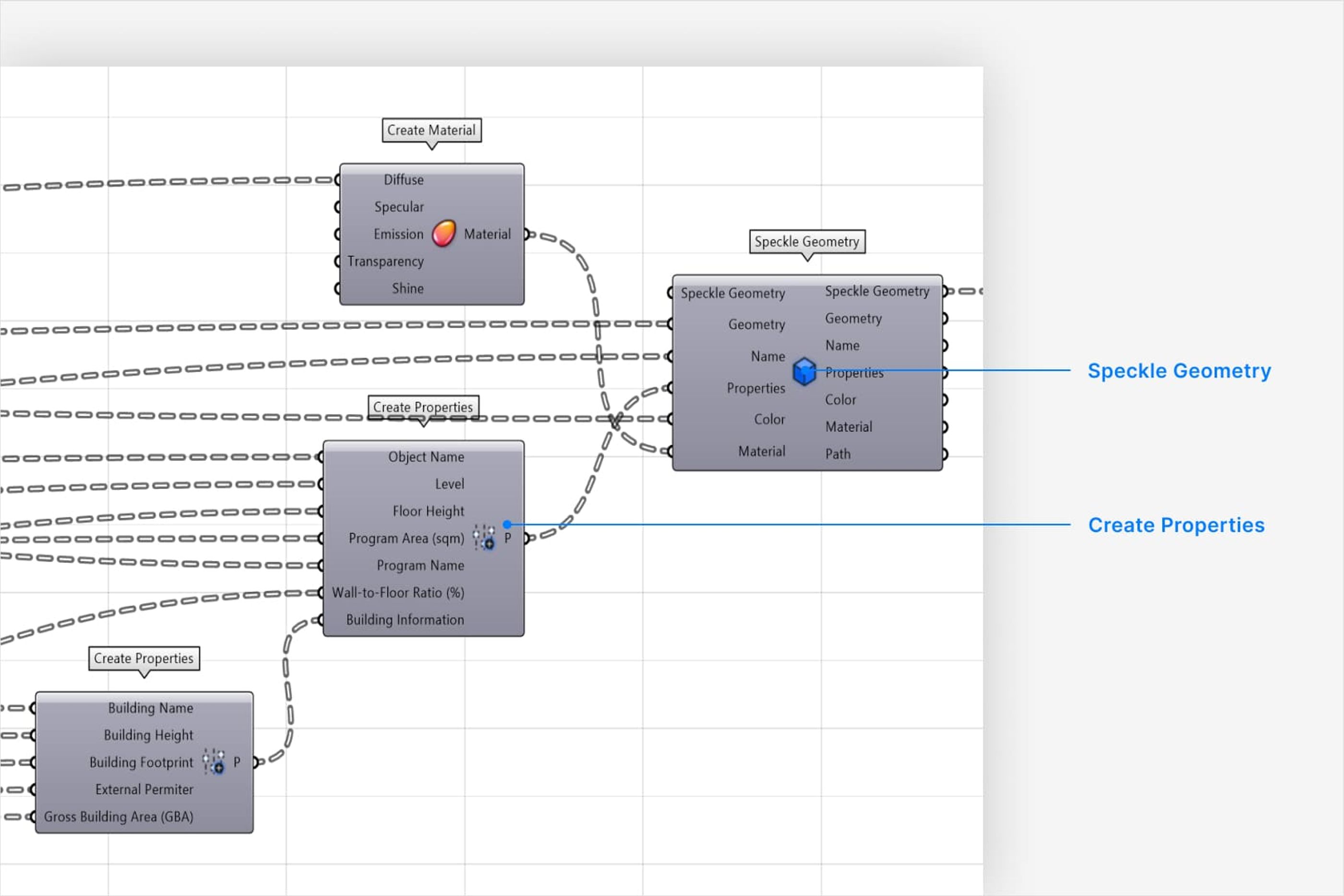
Step 5: Send models to Speckle
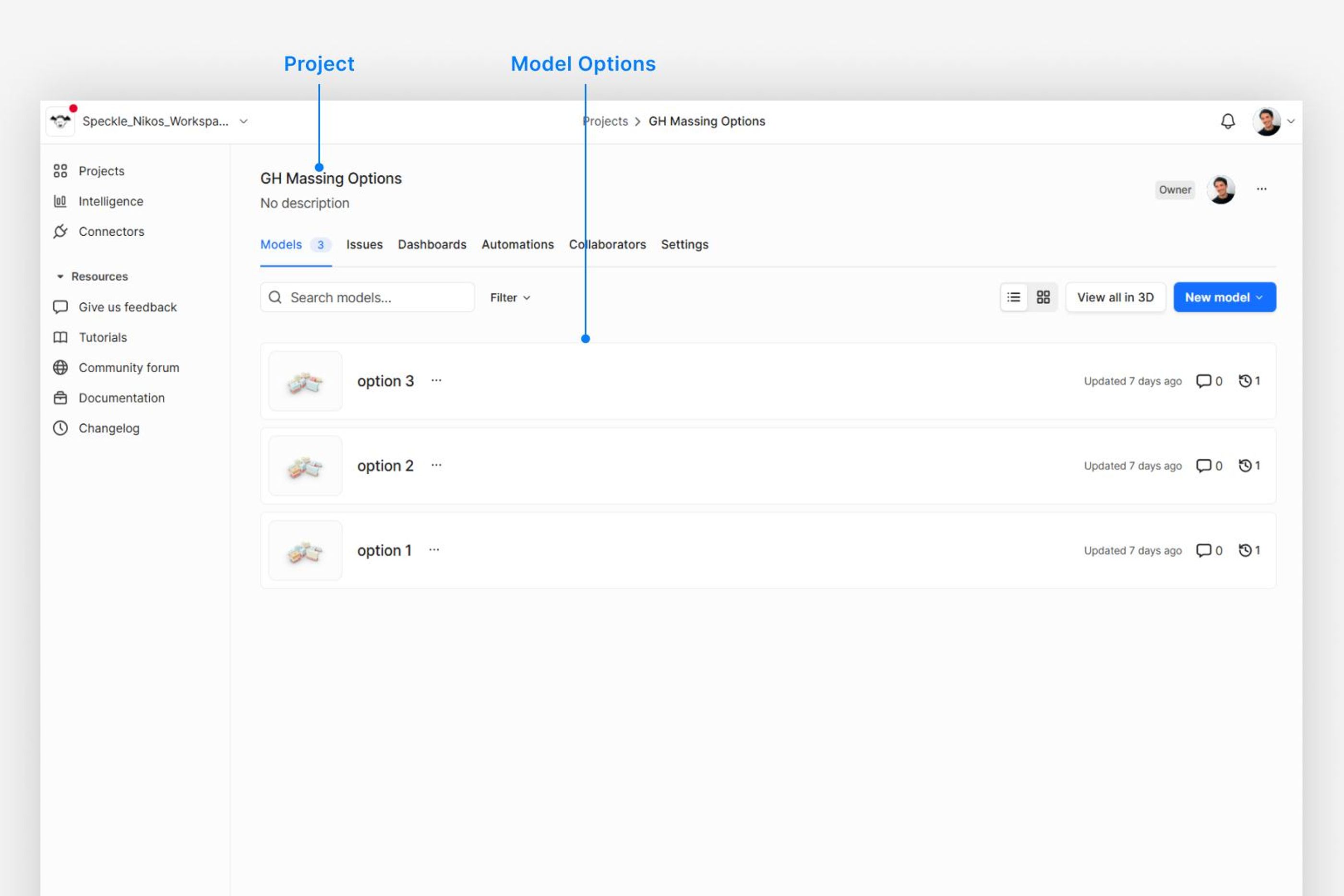
In the Speckle, create a Project with 3 empty models.
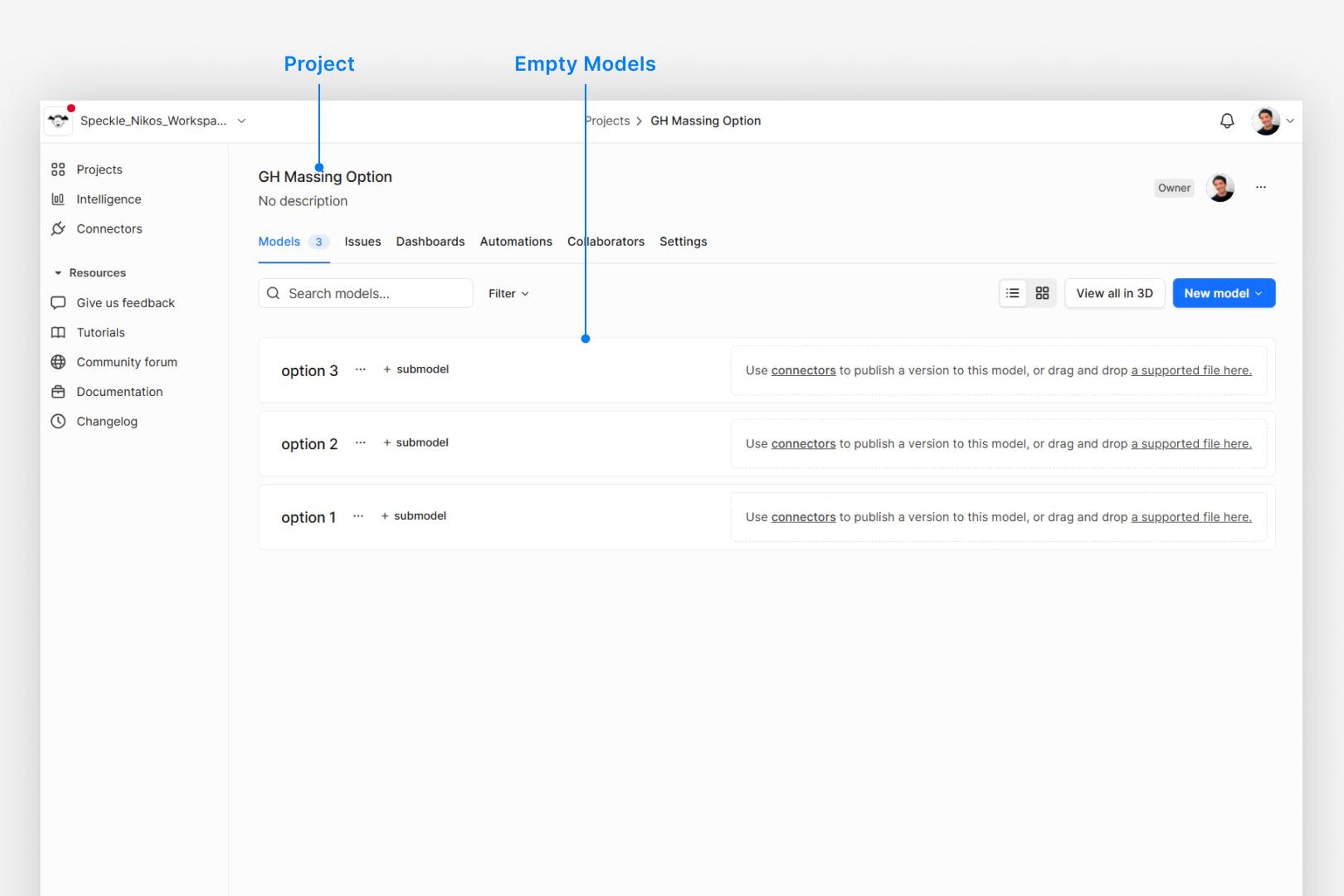
Use the "Speckle Model" component to access each model (Option 1, Option2, Option 3) and send your data to Speckle.
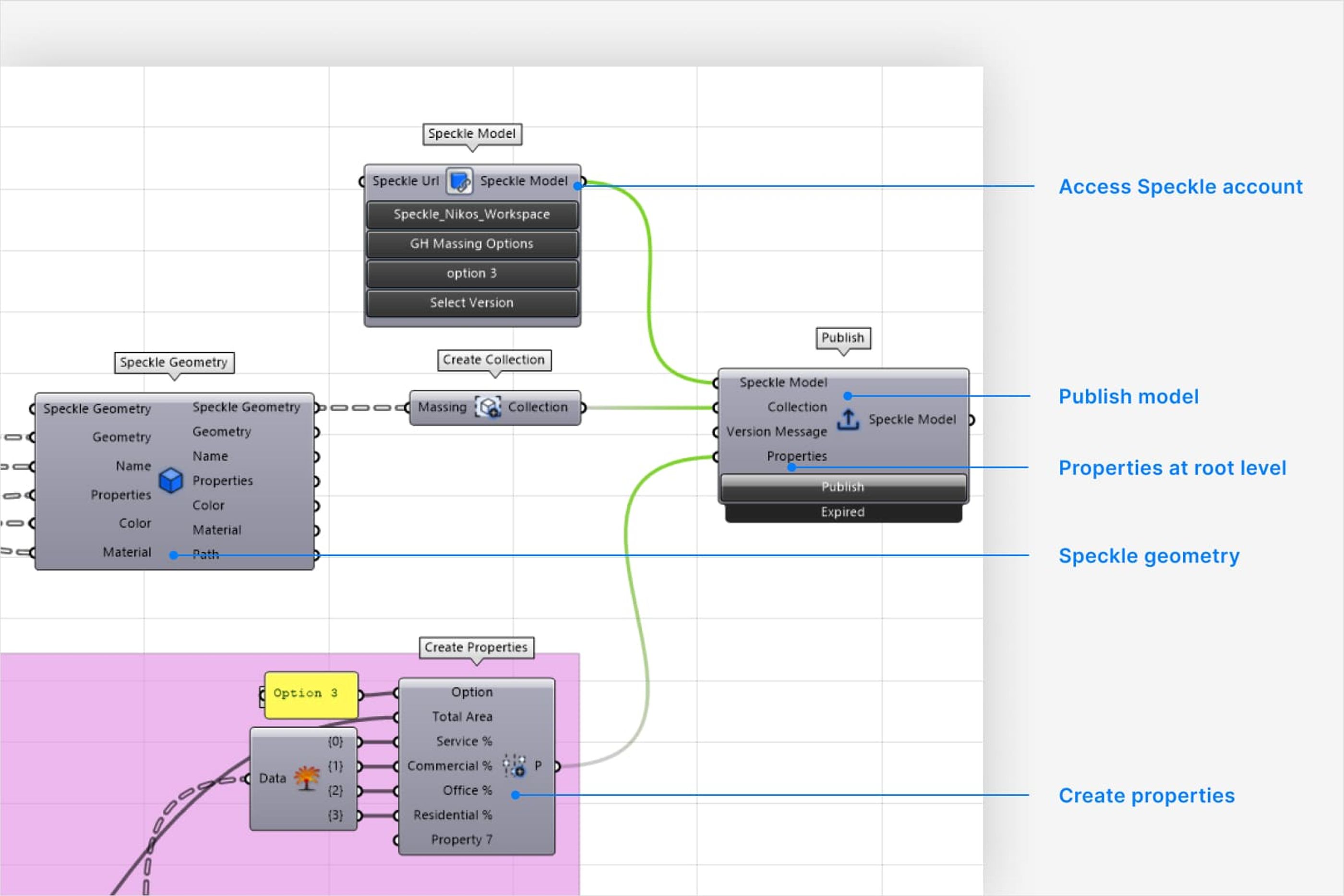
Make sure that the Properties in the Speckle web app are correct!
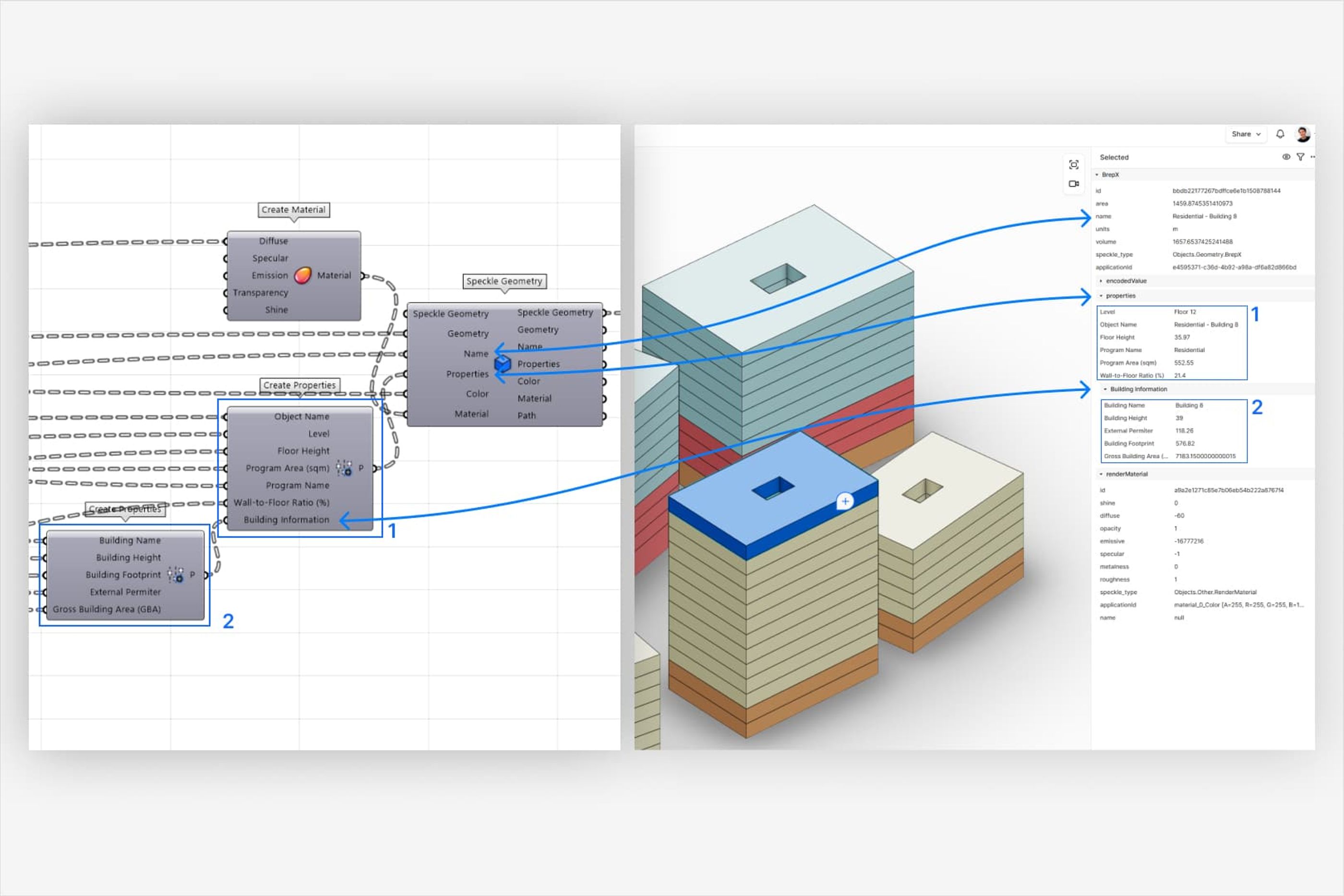
Step 6: Create multiple massing options
Change the massing in Rhino and try to create 2 more options that meet the brief.
Every time you create an option you like, create a new model and publish it to Speckle.
Step 7: Create the dashboard in Speckle Intelligence
In the video below, you’ll see how we connect three models (from separate data sources) and use widgets to create an analytical dashboard that displays KPI data from Rhino and Grasshopper.
Conclusion
By connecting Rhino and Grasshopper workflows with Speckle, this tutorial shows how massing models can evolve from static geometry into structured, data-rich assets that actively support you team's decision-making.
Instead of relying on intuition alone, you can now validate program distribution, compare alternatives side by side, and communicate performance clearly to stakeholders through an interactive dashboard.
If you want to move from massing studies to confident, data-driven design decisions, now is the time to take the next step. Start with Speckle for free and set up your Speckle Intelligence dashboard to turn early design intent into actionable insight.
Register for free and create your first Speckle Intelligence dashboard.