Convert Rhino blocks to Revit families with Speckle
Learn how to send block instances from Rhino, Grasshopper, or SketchUp into Revit as native families instead of flattened DirectShapes.
This matters because native families behave more like proper Revit content: they support scheduling and preserve repeated-instance logic better than exploded geometry.
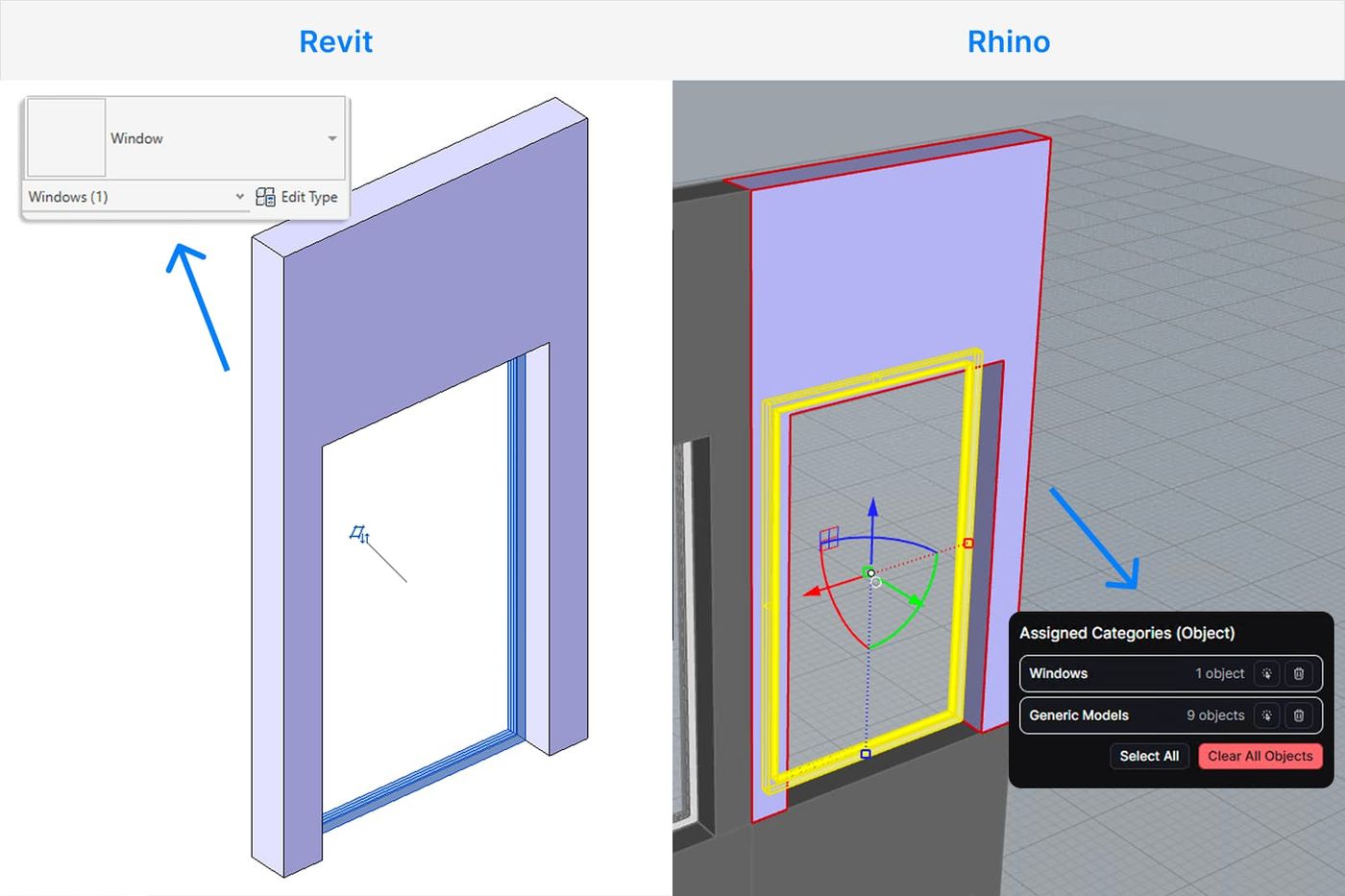
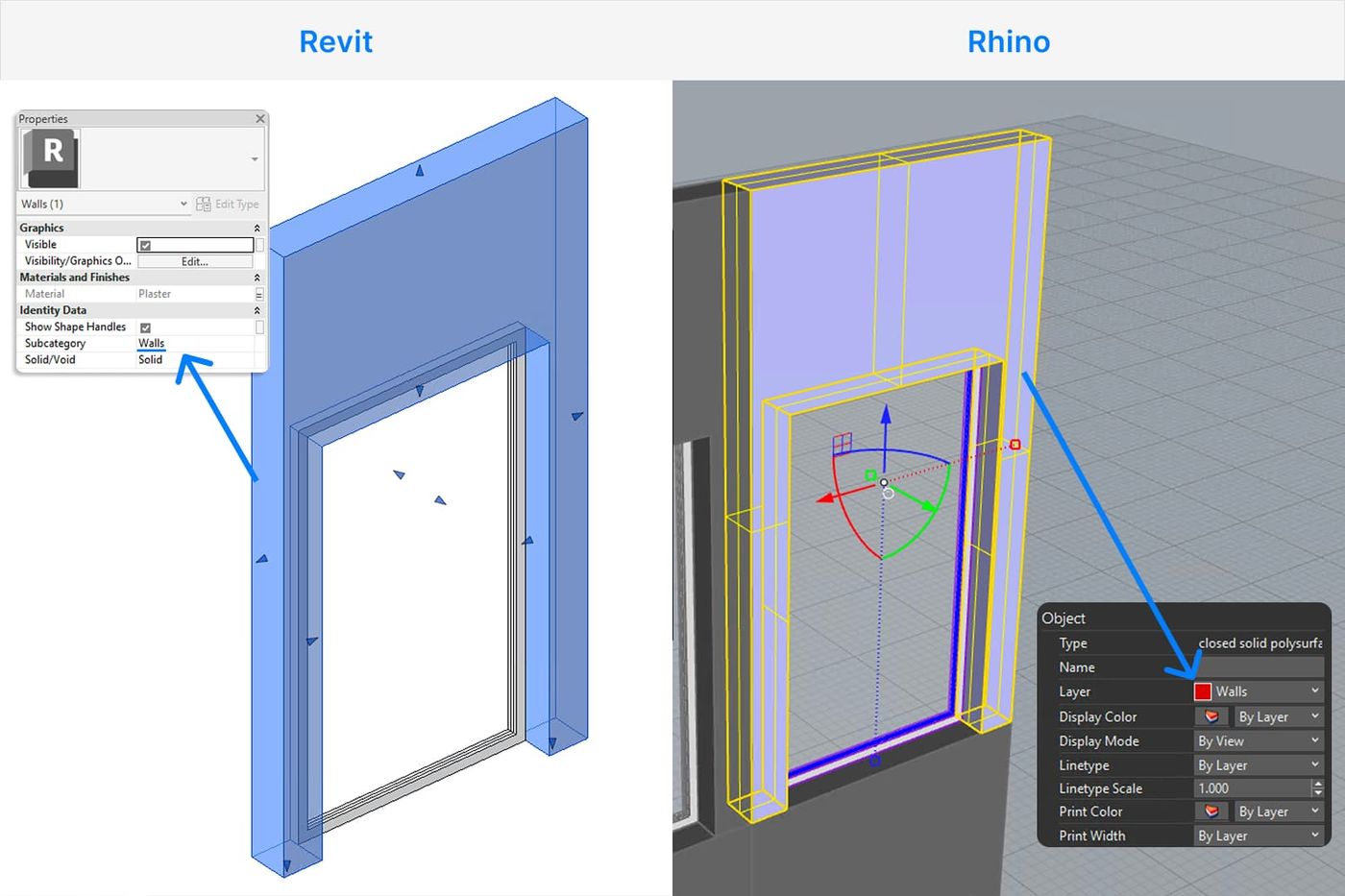
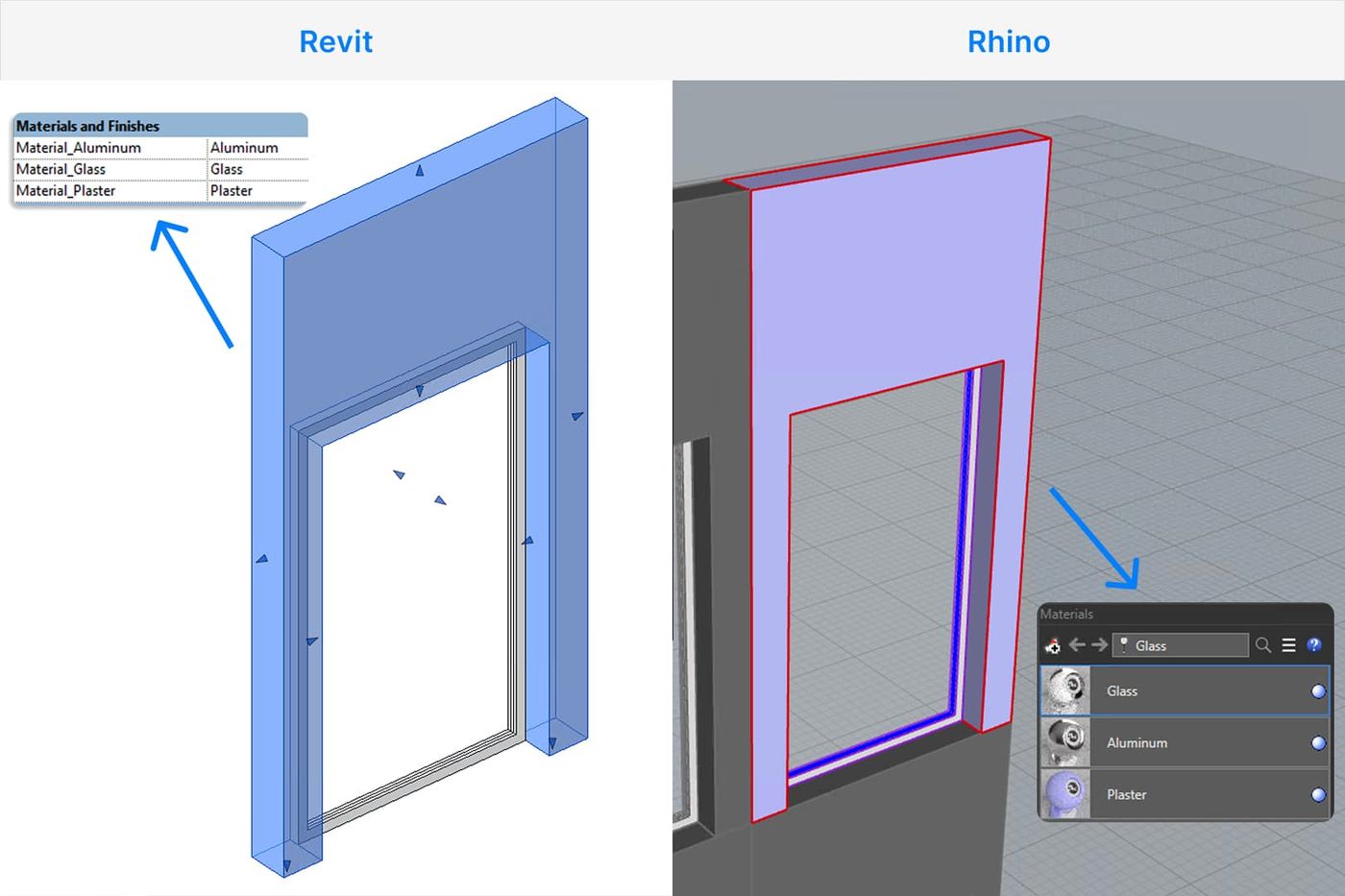
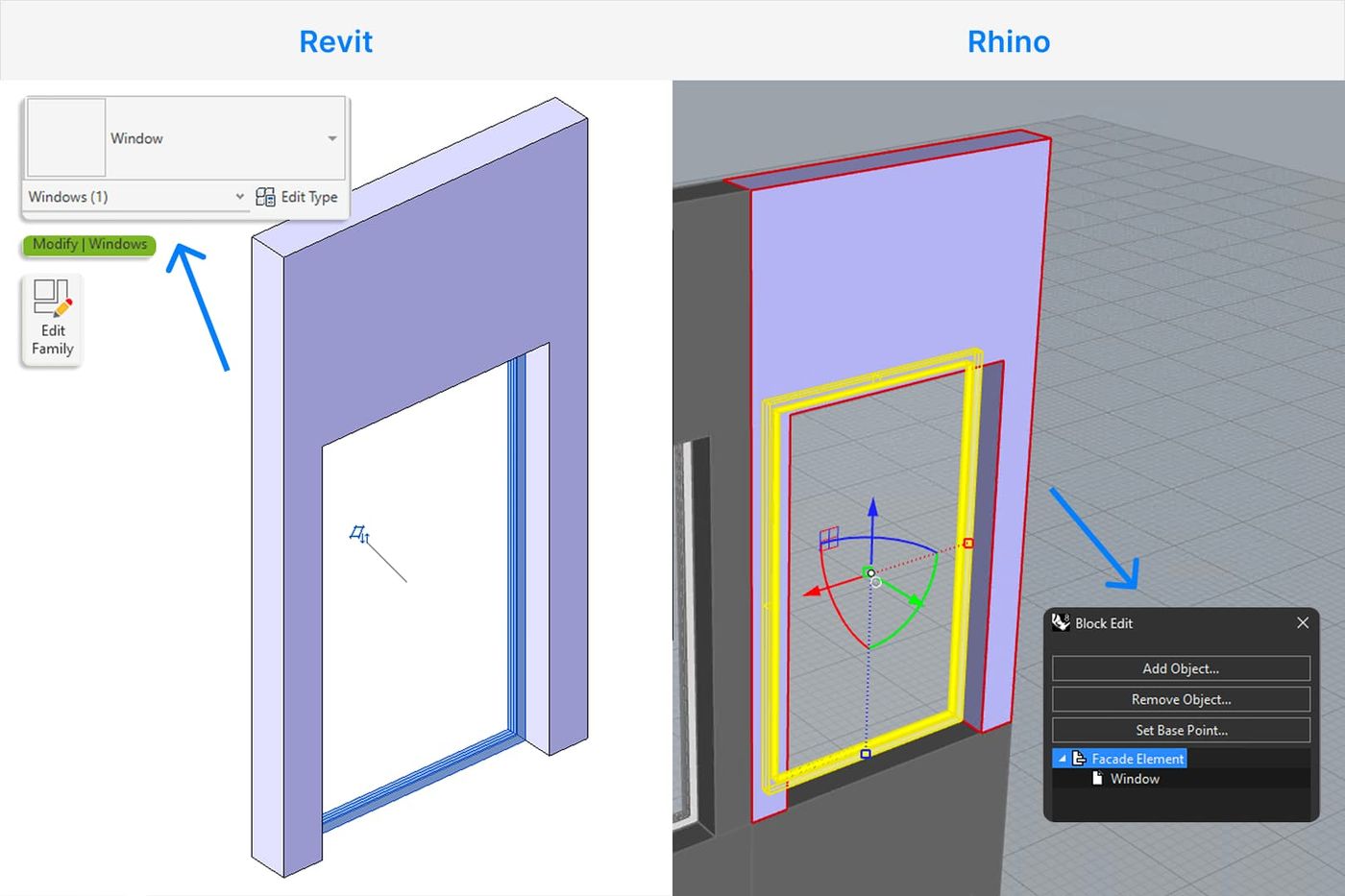
When to use this workflow:
Use this when:
- You have repeated block instances in Rhino, Grasshopper, or SketchUp
- You want those instances to stay reusable and organized in Revit, with a drastically reduced size
- You want schedule support and more native Revit behavior
- You do not want to remodel repeated design content manually
Use the DirectShape route instead when you want the lightest, fastest import and do not need family behavior. Speckle still supports both paths, with DirectShape loads being the default.
Before you start
You need:
- A Speckle plan. If you’re new, the free Speckle Expore plan is enough to test this out!
- Rhino with the Speckle connector installed
- Revit with the Speckle connector installed
- A model that contains repeated Rhino blocks
Turn blocks into reusable Revit families with Speckle.
The Rhino and Grasshopper connectors are bundled, so installing one gives you both.
Follow along with our team in the video below:
Step 1: Prepare your Rhino blocks
Create or identify the repeated elements you want to send as families. The key idea is simple:
- If an object is a true block instance, Speckle can treat it as an instance/definition pattern
- If it is exploded geometry, it will come through as regular geometry instead
A good quick check in Speckle’s viewer is to click on an object after publishing:
- Block instances appear as an instance proxy
- Exploded objects show as ordinary geometry types, such as extrusion
That distinction matters because only the instanced block geometry is eligible for family conversion in this workflow.
Step 2: Publish from Rhino normally
Open the Speckle connector in Rhino and publish the model as you normally would.
There is no special “send as family” option on the Rhino side. In this workflow, the important decision is made on the Revit receive side, not at publish time. The new family behavior is controlled by a toggle in the Revit connector settings.
Step 3: In Revit, enable “receive blocks as families”
In Revit:
- Open the Speckle connector
- Go to connector settings
- Turn on the new toggle that receives blocks as native Revit families
This toggle lets you choose whether to receive blocks as native families or use the original DirectShape approach.
Step 4: Load the model
Load the published Rhino model into Revit.
With the toggle on, Speckle will create families from the incoming blocks instead of flattening everything into generic geometry. Repeated façade elements became one family definition with multiple instances placed, which is exactly the intended outcome.
Step 5: Check the result in Revit
After receiving, verify three things:
The repeated elements are families, not exploded shapes
Select several repeated instances. They should behave like repeated family instances rather than unrelated imported fragments.
Materials and quantities behave more natively
Successfully converted solids exposed volume calculations and material type parameters. That is one of the practical advantages of the family-based receive path.
Nesting is preserved
Nested content is being respected. For example, a table family composed of nested components stayed nested when loaded into Revit.
Step 6: Optionally assign Revit categories in Rhino
If you want clearer category behavior in Revit, use Speckle’s Rhino-side category assignment tool before publishing.
Speckle’s category assignment feature lets you assign valid Revit categories by object selection or Rhino layer, and categorized geometry can then follow Revit visibility settings and appear in schedules.
This works alongside the family workflow:
- Furniture categories worked for table and chair examples
- Some categories were not valid for certain freeform content, so those elements fell back to more generic behavior
Category assignment improves downstream organization, but not every category will be valid for every kind of incoming geometry.
Caveats and limitations
Scaled Rhino block instances do not translate cleanly
Rhino allows scaling block instances. Revit families generally do not behave that way. In the demo, scaled instances were restored to their original size.
Heavier or deeply nested block definitions can load more slowly
The family creation process is heavier than a DirectShape import because Speckle is creating Revit family content in the background. The more complex or nested the block structure, the slower the receive may be.
DirectShape is still useful
If your goal is lightweight exchange rather than native Revit family behavior, the DirectShape workflow is still the better fit. Speckle explicitly keeps both options available!
Best practices
- Use true block instances, not exploded copies
- Keep repeated content clean and consistent before publishing
- Use the family receive toggle only where native Revit behavior matters
- Assign categories in Rhino if Revit organization matters downstream
- Avoid relying on non-uniform block scaling
Conclusion
This workflow gives teams a better way to bring repeated design content from Rhino, Grasshopper, or SketchUp into Revit when native Revit behavior matters.
By turning block instances into native families, Speckle preserves repeated logic, improves schedule support, and makes the result more reusable and easier to manage downstream. That means less manual remodeling and a smoother path from design content to usable Revit elements.
At the same time, the DirectShape workflow still has a clear place. If your priority is speed, lightweight transfer, or quick geometry exchange, DirectShape remains a strong option.
The value here is having both paths available: families when you need more native Revit behavior, and DirectShapes when a faster, simpler import is the better fit.
Turn blocks into reusable Revit families with Speckle.