Design and BIM data analytics made easy: Get started with Speckle Intelligence
Finally, there's a way for every stakeholder to harness design data and make complex design reporting easier to create and understand.
With Speckle Intelligence, you get insights from any model, project, or portfolio, without waiting on specialist. The great thing is that if you're looking for a fast way to surface building data analytics today, you can try this workflow for free and with no obligation!
Turn untapped model intelligence into business value.
Simply connect your design tools or Autodesk Construction Cloud to Speckle, or import a file to gain in-depth analysis through the Speckle dashboard.
This tutorial shows you exactly how to do this without any prior Speckle knowledge, from setting up your Speckle project and publishing models to building interactive dashboards for data exploration and analysis.
Prerequisites
Before you begin, make sure you have:
- A Speckle account
- At least one Speckle connector is installed. You do this in Speckle, in the Connectors menu.
In this tutorial, we’ll use Revit as the example software. However, the same steps apply to any other application supported by a Speckle connector.
Step 1: Create a project with multiple models in Speckle
In this step, you’ll create a new Speckle project and configure it to contain multiple models. We’ll cover how to organize models by discipline so architectural, structural, and other data can be managed and shared independently within the same project.
Step 2: Send models to Speckle (Revit example)
In this step, you’ll use the Speckle Revit connector to send your models to Speckle.
You’ll publish the Architectural model, Structural model, and Rooms as three separate models within the same project, following best practices for clean and reusable data.
You can follow the same process with any of our connectors, Navisworks, Archicad, Rhino, etc.
Step 3: Create a new dashboard in Speckle Intelligence
In this step, you’ll move into Speckle Intelligence and create your first dashboard.
The images below illustrate the dashboard's structure and layout.
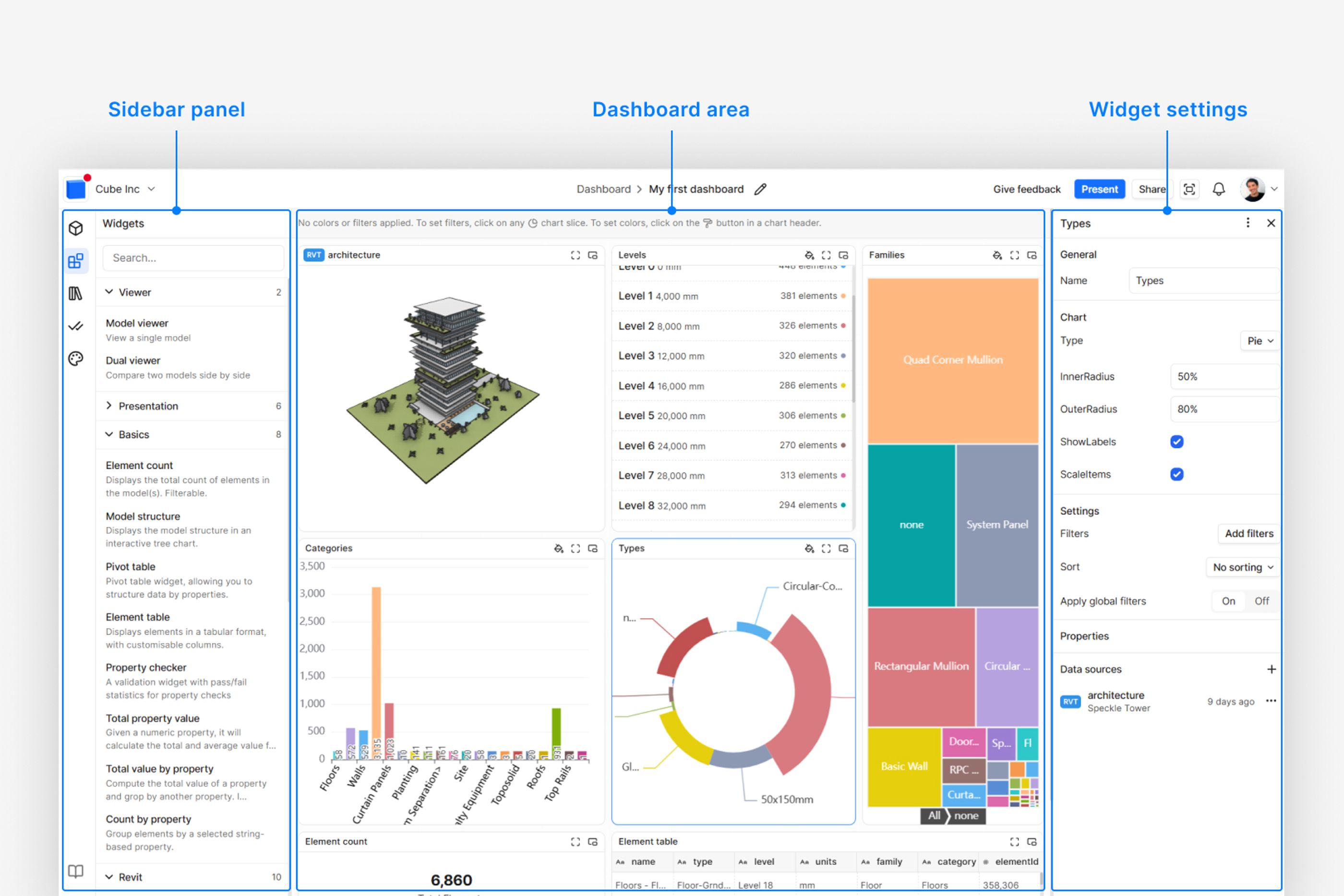
Speckle Intelligence Navigation overview
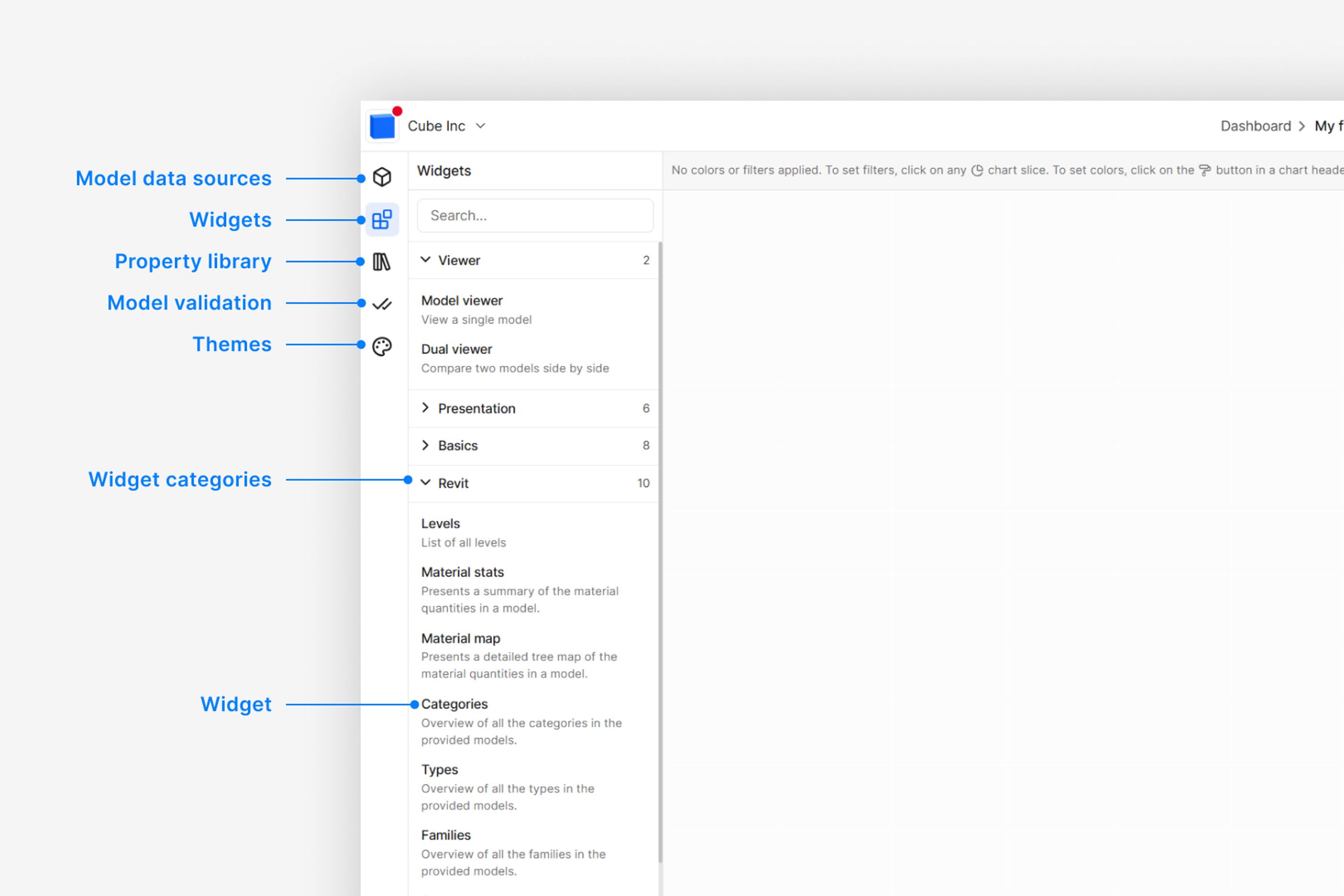
Speckle Intelligence left panel navigation
Step 4: Add a model as a data source (single model)
In this step, you’ll connect a single Speckle model to your dashboard as a data source. You’ll learn how models become available for use across widgets.
Step 5: Add multiple models and sync views
In this step, you’ll connect multiple models (three data sources) to the same dashboard. We’ll show how to sync views across models so interactions and selections stay aligned.
Step 6: Connect a widget to a model (single data source)
In this step, you’ll connect a widget to a single model only, creating a one-to-one relationship between the data source and the widget.
Step 7: Connect a widget to multiple models (multiple data sources)
In this step, you’ll connect a single widget to multiple models, allowing you to compare and analyze information across different data sources. This establishes a one-to-many relationship between the widget and the data sources.
Step 8: Add an element table with multiple properties
In this step, you’ll add an element table to your dashboard and configure it to display multiple properties.
The properties list includes all available properties in your model. Once set up, the table displays the selected properties for each element and updates dynamically as you interact with and filter the model.
Step 9: Apply multiple filters using charts
In this step, you’ll use charts as interactive filters to refine the data displayed across your dashboard.
This allows you to explore the model more effectively and create multi-level filters that help surface insights from your data.
Step 10: Color-code data and change color themes
In this step, you’ll apply color coding and adjust color themes to highlight patterns and improve the clarity of your dashboard.
Step 11: Pop out a widget in Speckle Intelligence
In this step, you’ll learn how to pop out a widget in your dashboard so it stays visible as you scroll.
This is especially useful when working with large dashboards, allowing you to keep key information on screen while navigating through the rest of your content.
Step 12: Presentation mode
In this step, you’ll learn how to present your dashboard in Speckle Intelligence.
Presentation mode hides the side panels and scales the dashboard to fill the entire window, with the option to switch to full-screen for a cleaner, distraction-free experience.
Step 13: Share the dashboard with stakeholders
In this step, you’ll learn how to share your dashboard with others.
Sharing allows you to communicate your insights and data-driven findings quickly and clearly, making it easy for others to explore the value captured in your dashboard.
Conclusion
Congratulations! In this tutorial, you learned how to set up a Speckle project, publish multiple models, and build interactive dashboards in Speckle Intelligence. You explored how to connect multiple data sources, configure widgets and tables, use charts as interactive filters, and analyze your data effectively.
With these skills, you can now create dashboards that provide clear insights, streamline collaboration, and make your data-driven decisions more powerful.
For more advanced features, detailed guides, and additional resources, check out the Speckle Intelligence documentation.
Turn untapped model intelligence into business value.